
Stock movements log
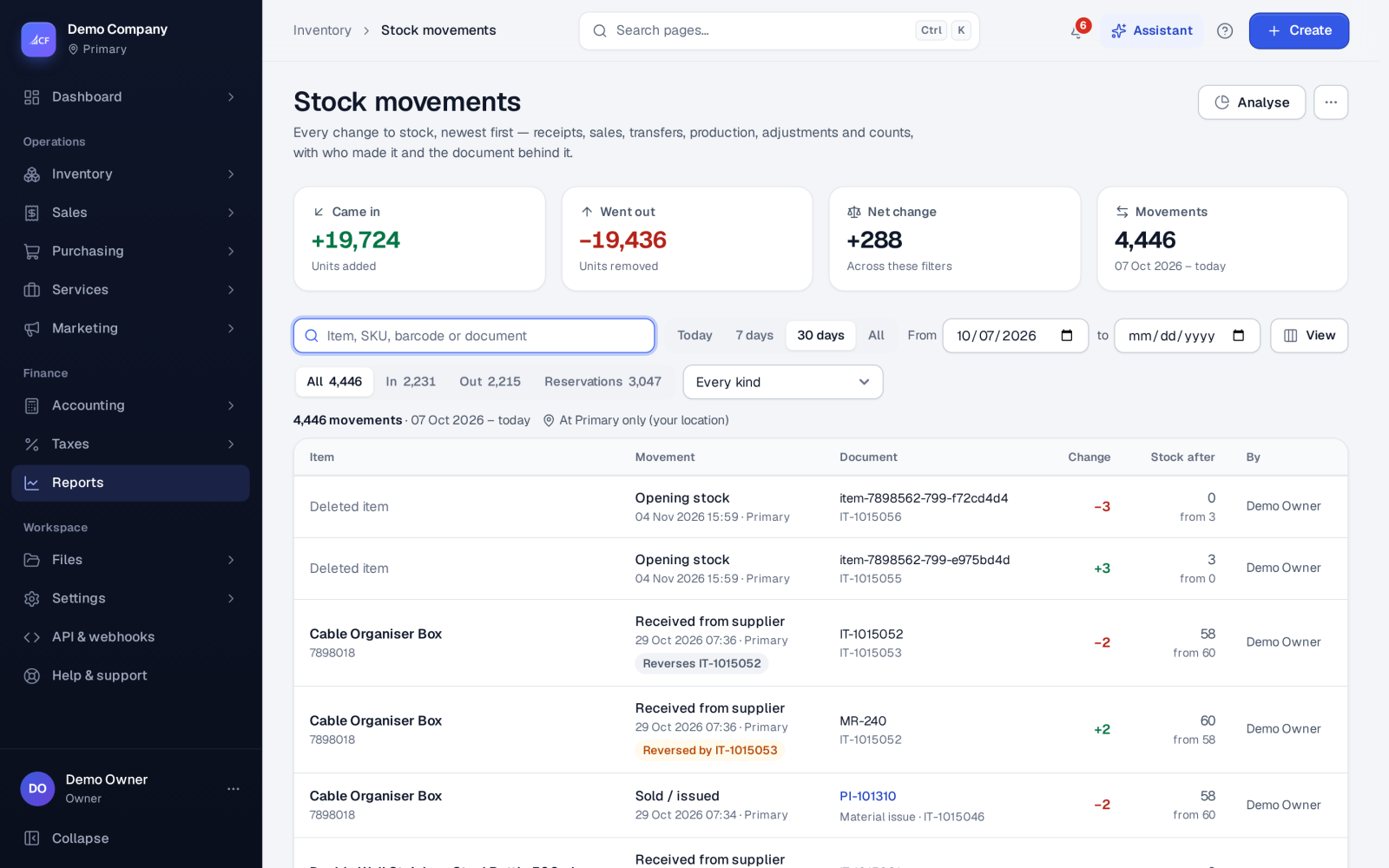
Every change to stock in one list, newest first: receipts, sales, transfers, production, adjustments and counts, with who made it and the document.
What it is
Inventory › Stock movements is the log of every change to stock. Each line is one movement of one item at one location: what it was, the document that caused it, the change in quantity, the stock after it, and the person who made it.
Stock in the app only ever changes through a movement, so this log explains every stock figure you see — on the product, in reports and in what is sent to your online stores.
Who it is for
- Warehouse managers tracing why a figure changed
- Bookkeepers matching stock to the Inventory account
- Owners checking who moved what, and when
- Auditors who need the full trail behind a stock value
Step by step#
- Open Inventory › Stock movements.
- Choose a period: Today, 7 days, 30 days or All, or set From and to dates.
- Under Kind of movement, narrow the list if you need to.
- Search by item or document in Search movements.
- Select a row to open the document behind the movement.
- Choose More actions › Download this page as CSV to keep a copy.
What the log records#
Each line shows Item, Movement, Document, Change, Stock after and By. The kinds of movement you can filter on are:
| Kind | Comes from |
|---|---|
| Purchases | Goods received, purchase returns, deleted receipts |
| Sales | Picks, one-step sales, the till, sales returns |
| Transfers | Stock picked at the source and received at the destination |
| Production | Material issues and finished-goods receipts |
| Adjustments | Approved stock adjustments and expired-stock write-offs |
| Stock counts | Approved count differences |
| Opening stock & deletes | Opening stock, product deletes and merges |
| Online stores | Stock figures taken from a connected store |
Because every line keeps the stock before and after, movements that took stock below zero can always be found (see Stock never below zero).
Corrections never rewrite the log#
A movement is never edited or removed. When a document is corrected or deleted, the app adds a reversing movement, so both the original and the correction stay in the log. A deleted product's stock is zeroed by a movement before it goes, and a merged product's stock moves to the product you keep by a pair of movements.
Other places to see stock history#
- The product page › Activity shows the movements of one product.
- Inventory › Stock at a date shows the quantity, unit cost and value of every item on any date, valued by your method (FIFO or weighted average) and reconciled to the Inventory account. Filter it by location.
- Reports has stock summary and valuation reports for longer periods.
How it posts to the books#
The log itself posts nothing; it records the stock side of documents that post. Each document posts its own journal — a receipt debits Inventory, a pick credits it against cost of goods sold, an adjustment against the adjustment gain or loss accounts — so Stock at a date and the Inventory account agree.
Limits and what is not there yet#
- The CSV download takes the page you are looking at; narrow the filters first for a large period.
- Reservations (stock held by approved orders) change what is available, not what is on hand; the log's Stock after is the on-hand figure.
Questions#
Why does the stock on a product differ from what I expected?
Open its movements and read down the Stock after column — each change is tied to a document you can open.
Can I delete a wrong movement?
No. Correct the document behind it (for example delete a waiting adjustment, or make a new one). The correction appears as its own movement.
Where do I see the value of my stock last month?
Use Inventory › Stock at a date, choose the date and, if you want, a location.
Who can see the log?
Anyone with the view right on stock movements, given in their permissions.