
Media library
Find every product, variant, gallery and category image in one place, edit it in the browser, replace it or remove it, and your online stores are told.
What it is
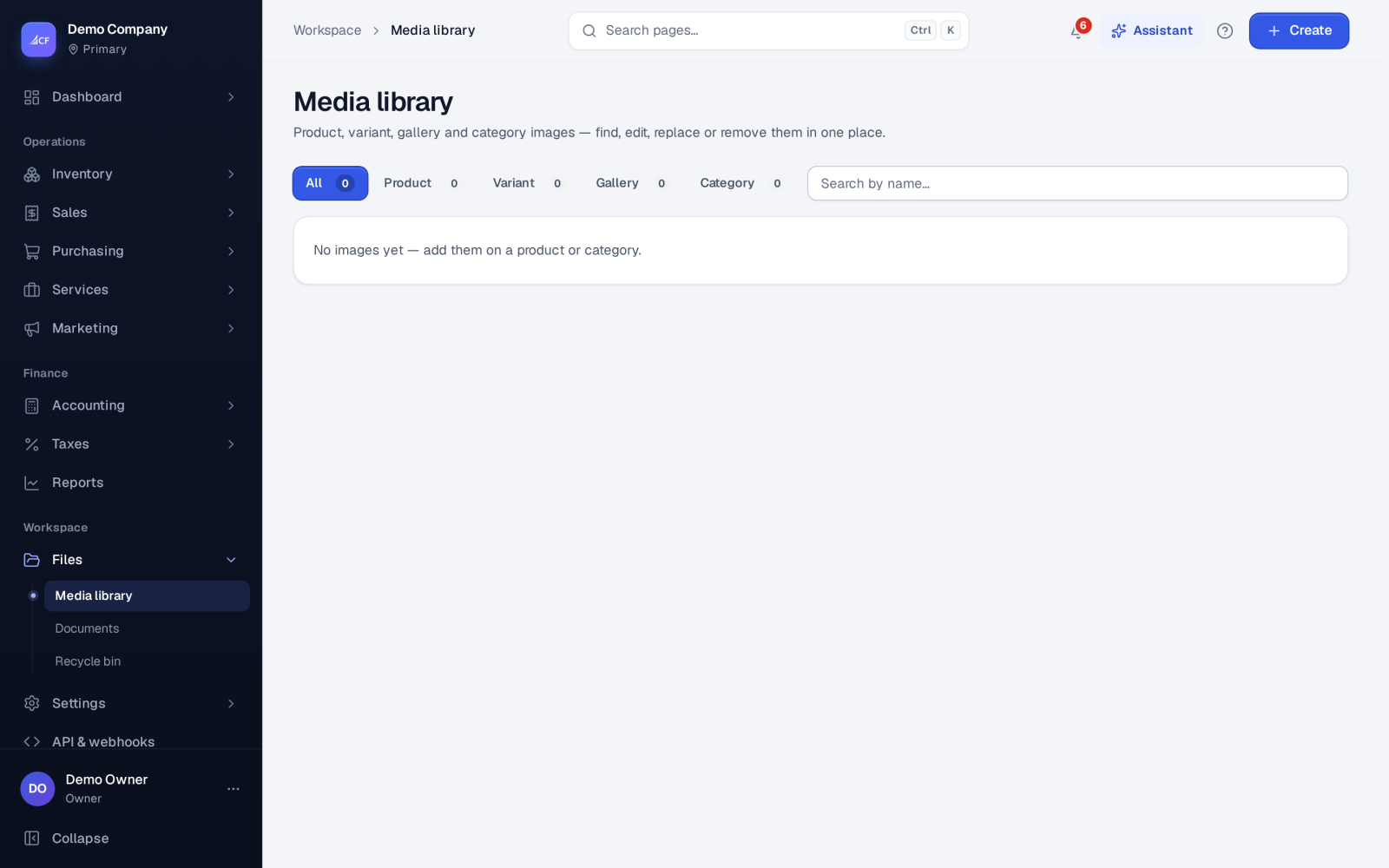
The media library shows every image your catalogue holds in one place: product main images, variant images, gallery images and category images. From here you can search them, open the product they belong to, edit an image in the browser, replace it with a new file, or remove one or many at once. When a change touches a product sold online, the connected stores are told.
Images are kept in your business's own private file folder.
Who it is for
- Catalogue managers who keep product photos tidy and consistent.
- Online sellers who want the same images on every store.
- Anyone cleaning up old or wrong pictures.
Before you start#
- Seeing the media library needs its view right.
- Editing or replacing an image needs Edit on Products; removing one needs Delete on Products.
Step by step#
- Open Files › Media library.
- Use the views All, Product, Variant, Gallery or Category, or Search by name….
- Open an image to see where it is used; Open product takes you to its product.
- Edit it in the image editor, or choose Replace to pick a new file.
- Press Save image.
The image editor#
The editor works in your browser:
- Rotate left, Rotate right, Flip horizontally, Flip vertically, Zoom in, Zoom out, and cropping with Width, Height and Keep the ratio.
- Brightness, Contrast, Saturation, Grayscale, Sepia, Invert and Soft blur.
- Original shows the image before your changes; Start over undoes them all.
A saved image is checked and compressed (JPG or PNG up to 20 MB, longest side 1,600 pixels), stored under a new name in your business's folder, and the old file is removed.
Removing images#
Select one or many images (up to 500 at a time) and choose Remove. A product, variant or category image is cleared from its record; a gallery image is deleted. The files are removed after the change is saved, and online stores are told about the products it touched.
Media library and product photos#
The usual place to add and order a product's photos is the product form itself, where the first photo is the main photo and the store's featured image (see Store sync health). The media library is for finding, editing, replacing and cleaning up images across the whole catalogue.
Limits and what is not there yet#
- The media library holds catalogue images only. Files attached to orders, bills, payments and journals are in Documents.
- New images are added on a product, variant or category, not in the media library.
- Removing an image here does not delete old copies from a store's own media library. For WooCommerce, use Find unused photos on the WooCommerce Health tab.
Questions#
Where do I add a new product photo?
On the product form, in its photos part. The media library shows it once it is saved.
Will my store get the edited image?
Yes. Saving an edited or replaced image tells the connected stores about the products it touched.
Why can I see images but not change them?
Editing and replacing need Edit on Products, and removing needs Delete on Products.
Can I remove many images at once?
Yes. Select them and choose Remove — up to 500 at a time.