
Job schedule and dispatch
See every open job on a status board or week calendar, book it for a time and a team, and move it on. The customer is told when it is booked.
What it is
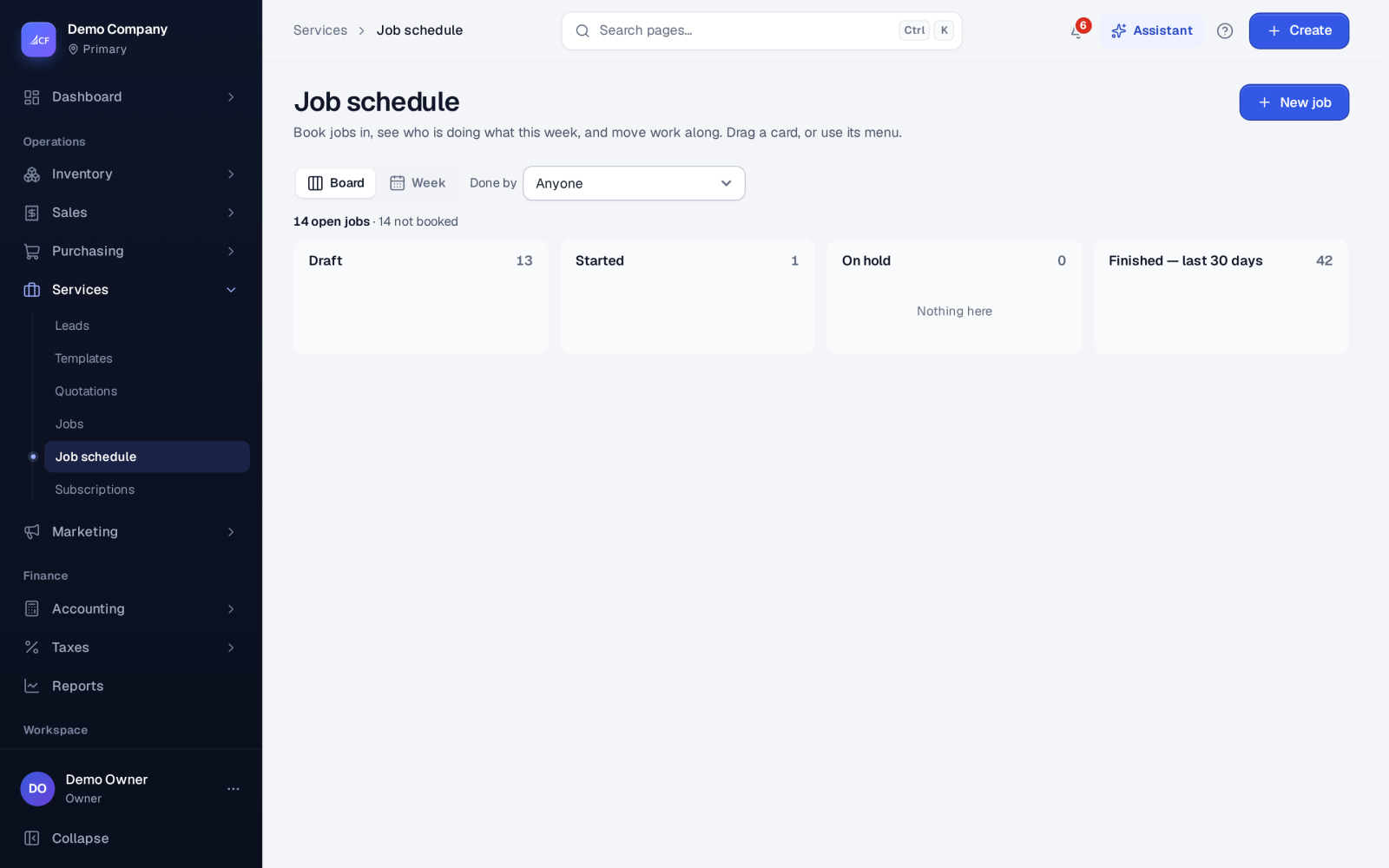
The job schedule shows who does which job when. It has two views:
- Board shows a column for each status: Draft, Started, On hold, and Finished for the last 30 days. Drag a card to another column to move the job on.
- Week shows a calendar of booked jobs, with the jobs not booked yet beside it.
Booking a job gives it a date and time, how long it takes, and the team, technician or unit doing it.
Who it is for
- Dispatchers and office staff who plan the day's visits
- Service managers balancing work across technicians and teams
- Technicians checking what they are booked for
- Businesses whose customers expect a time and a reminder
Before you start#
- Switch Jobs and Job scheduling on in Settings › Sales › Services.
- Set up your teams, technicians or units in Settings › Sales. Each has a name and a colour, and can be linked to an employee. One that jobs already use can be switched off but not deleted.
- Seeing the board needs the view right on the Job schedule page. Moving and booking jobs needs the edit right.
Step by step#
- Open Services › Job schedule.
- Use Done by and Team to narrow the board to one person or team.
- On a job's card, open the menu and choose Book….
- Enter the Date and time and How long (minutes), choose the Team / technician, and save.
- Switch to Week to see the booking in the calendar. Use Change the booking… to move it, or Not booked to clear it.
- When the work begins, choose Start, or drag the card to Started. Use Put on hold if it has to wait.
- Choose Finish when the job is done, then invoice it from the job.
Booking rules#
- No double booking. A team or technician can't be booked on two jobs that overlap in time, unless one of them is cancelled.
- Duration. A job keeps its duration unless you change it; 60 minutes is used when none is set.
- Cancelled jobs don't appear on the board and can't be booked.
- Nothing moves back to Draft from the board.
- Starting from Draft or On hold follows the job deposit rule. If a deposit is required and not paid, the job can't start, and the board never overrides that.
- Finishing is refused while the job still holds a deposit. Apply it to the invoice, or refund it, first.
- A person tied to one location sees and moves only that location's jobs.
What the customer hears#
When a job is booked or moved, the customer is told by e-mail, or by text if there is no e-mail address. The day before a scheduled job, the customer gets a reminder once. Each notice, or a failed send, is recorded on the job's timeline. These messages follow your settings in the messaging hub for "Job booked or rescheduled" and "Job status update". They can be automatic, held for approval, or off, and customers who opted out are respected.
Limits and what is not there yet#
- The board lists every open job, and finished jobs from the last 30 days only. Older finished jobs are in Services › Jobs.
- The schedule plans people and time. It does not plan routes or track where technicians are.
Questions#
Can I book a job that has no quotation?
Yes, when Starting a job in the services settings allows jobs without a quotation. Otherwise the job must come from an accepted quotation.
Why won't a job start from the board?
Usually because a deposit is required and hasn't been paid. Take the deposit from the job's Deposit… menu, then start it.
Can I schedule production work on the same board?
No. Work orders have their own production schedule and resources, such as work centres and machines.