
Production schedule and shop floor
Move work orders across a board, plan when and on which machine each runs, show the floor what to do next, and record operation times on the work sheet.
What it is
Three production screens keep work moving once work orders exist:
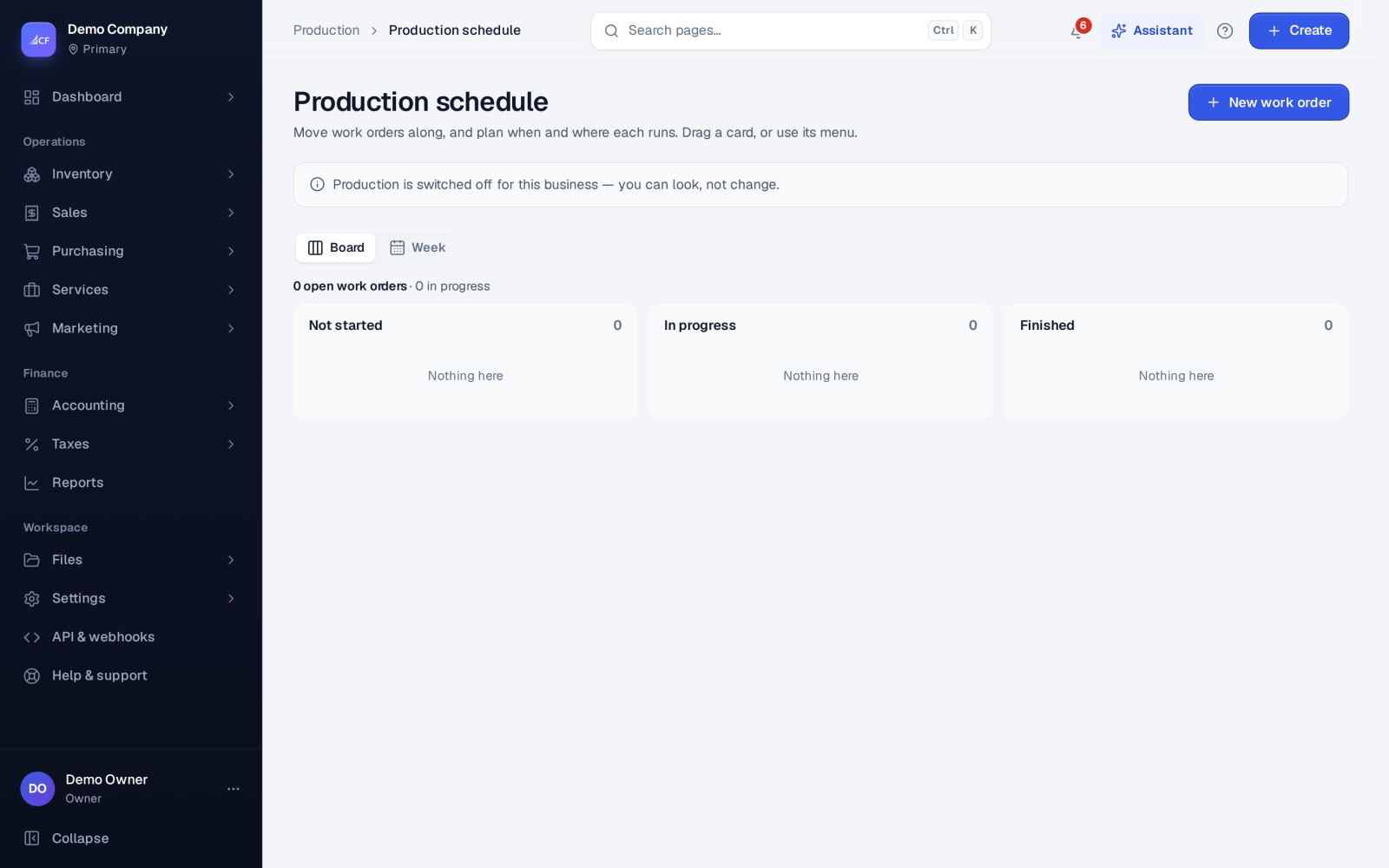
- Production › Schedule — a board and a week plan: move work orders along, and plan when and where each runs.
- Production › Shop floor — what to work on now, as cards that each show their next step.
- Production › Work sheet — one task per operation of each open work order, marked done as the work happens, with the time it took.
All three work on the same work orders, so a move on one screen shows on the others.
Who it is for
- Production planners booking machines, lines and teams
- Supervisors running the floor from a tablet or screen
- Operators marking their steps done
- Managers comparing planned and actual time
Before you start#
- Work orders must exist (see Work orders).
- Add your scheduling resources — machines, lines, teams and work centres — in Settings › Production.
- To record and cost actual time, switch on Work-centre costing in Settings › Business setup.
- Rights: view on each screen; edit on the schedule to reschedule; edit on the work sheet to change tasks or record minutes. The work sheet edit right is in the Production Manager role preset.
Step by step#
- Open Production › Schedule.
- On the Board, drag a work order card from Not started to In progress or Finished, or use the card's menu.
- Switch to Week and choose Schedule… on a work order.
- Set the start, How long (minutes) and the Resource (machine, line or team), and save.
- Open Production › Shop floor on the floor's screen and work through each card's next step.
- As each operation is done, open Production › Work sheet, choose Mark done and enter the Minutes it took.
The schedule#
- Board — columns Not started, In progress and Finished. Finishing needs the materials issued, unless the work order backflushes. A work order that has already received its goods cannot be moved back.
- Week — each work order placed on its resource and time. A resource cannot run two work orders at once. Work orders without a time show as Not scheduled.
A scheduled work order runs from 1 minute to 31 days.
The shop floor#
Each card shows the work order and its next step as a button: Issue materials, Start, Finish or Receive the goods. Cards past their deadline are flagged. The screen refreshes itself every minute, so it can stay open on a wall screen or tablet.
The work sheet#
The work sheet lists one task per operation of each open work order, with views for All, Not started, In progress and Done.
- Tasks open only once the work order's materials are issued ("Issue its materials first").
- The work order follows its tasks: all not started is Planned, all done is Finished, anything else In progress.
- With work-centre costing on, starting a task stamps the time, and Mark done stamps the time and the person and asks for the Minutes it took (it shows the planned minutes; leave it empty if nobody timed it).
- Minutes can be corrected until the work order is closed, and every change is audited.
How it posts to the books#
Scheduling and the work sheet post nothing themselves. When finished goods are valued at actual time (set in Settings › Production), the recorded minutes set the operations cost on the finished-goods receipt. Postings happen on the material issues and receipts.
Limits and what is not there yet#
- The schedule plans one resource per work order; it does not split a work order across several machines.
- Times recorded after the goods have been received do not change that receipt's cost.
Questions#
Can I drag a work order back to Not started?
Yes, until its goods have been received. After that it stays finished.
Do operators need their own sign-in?
Each person who marks tasks done or records minutes needs their own account with the work sheet edit right, so the time and person are stamped correctly.
Why can't I start a task?
The work order's materials have not been issued yet. Issue them from the work order or the shop floor card, then start the task.