
Locations and stock transfers
Keep stock per warehouse or shop and move it with transfer orders: approve, pick at the source, send it on its way and receive it at the destination.
What it is
Every stock figure, sale and purchase belongs to a location — a warehouse, a shop or a counter. Transfers move stock between them in four steps, each a document with its own number:
- Transfer order — what should move, from where to where. Approval holds the stock at the source.
- Stock picking — the stock leaving the source.
- Deliveries — the picked stock on its way.
- Stock received — the stock arriving at the destination.
While goods travel they are in transit: no longer at the source, not yet at the destination, and still on the books.
Who it is for
- Businesses with several shops, warehouses or branches
- Central warehouses that refill shops
- Managers who approve stock movements between sites
- Bookkeepers who need stock in transit valued correctly
Before you start#
- In Settings › General, set Several locations to Yes. The Transfers menu then appears.
- Add your locations in Settings › Locations.
- Set Ask for the location at sign-in if people who work at several locations should choose one when they sign in. A person can also be fixed to one location.
- Rights: the transfer order rights (add, edit; approve, close, re-open and cancel), and the pick, delivery and receipt rights for each step.
Step by step#
- Open Transfers › Transfer orders and choose New transfer.
- Choose From and To — they must be different locations.
- Enter the Date, and Needed by, Handled by and a Note if useful.
- Add the items and quantities, and any costs (for example freight).
- Save, then approve the order. The stock is held at the source and shown as expected at the destination.
- Open Transfers › Stock picking, choose Transfers to pick, and pick the lines — with their lots and serials for tracked items.
- Open Transfers › Deliveries, choose Transfers to send, and send the pick on its way with its shipping method.
- At the destination, open Transfers › Stock received, choose Transfers to receive, and receive the delivery.
Statuses and views#
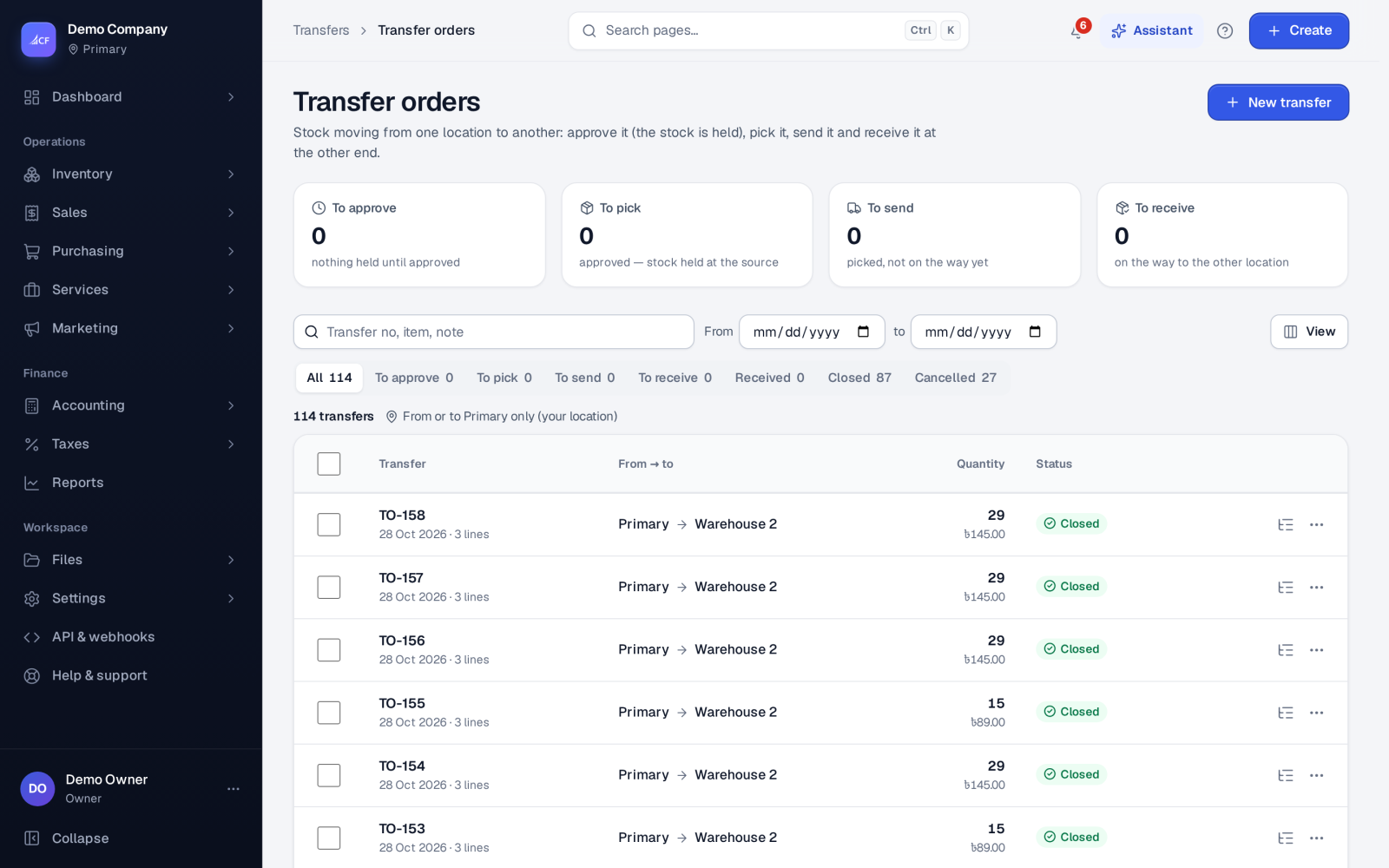
The transfer orders list has views for All, To approve, To pick, To send, To receive, Received, Closed and Cancelled.
- A transfer order can be edited only while it waits for approval, and a waiting order can be cancelled.
- Close ends an order early: whatever was never picked is released at the source. A closed order can be re-opened.
- A delivery carries the whole pick, and a receipt takes the whole delivery. If something arrived damaged or short, receive it and record the loss with a stock adjustment at the destination.
- Lots arrive with their original dates, and serials follow the units.
Undoing a step
- A pick can be deleted while it has no delivery and no bill.
- A delivery can be deleted while nothing has been received from it.
- A receipt can be deleted unless a lot or serial it brought in has already been used.
Each delete reverses its stock movements and journal and puts the order's progress back.
Costs on a transfer
Billable cost lines on the order (freight, handling) become supplier bills from its first pick, billed once. Each bill waits on the Bills page for approval.
How it posts to the books#
- Pick: debit Tracking Transfers (stock in transit), credit Inventory at the source, at the source's average cost.
- Delivery: nothing moves and nothing posts.
- Receipt: debit Inventory, credit Tracking Transfers at the destination. The destination's average cost takes in the transferred cost.
The transfer order's line values use the source's average cost, which is what the pick books.
Limits and what is not there yet#
- Picks follow the stock below zero policy and a stock-count freeze at the source; receipts respect a freeze at the destination.
- A saved pick is not edited; delete it and pick again.
- Several locations cannot be switched off while there is more than one location.
Questions#
Why can't I see the Transfers menu?
Several locations is off in Settings › General, or you do not have the transfer rights.
Where is stock while it travels?
In the Tracking Transfers account. It has left the source's stock and is not yet in the destination's, so neither location can sell it.
Can I receive only part of a delivery?
No — a receipt takes the whole delivery. Record any shortage or damage with a stock adjustment at the destination afterwards.
What happens to an approved order we no longer need?
Close it. Anything not yet picked is released at the source. If it was closed by mistake, re-open it.